taklab-hub
taklab-hub takes a phone from empty to a working ATAK connected to your environment. It installs ATAK and the plugins, serves the maps, orders the server and hands out the access. All in one place, with no hunting for files on a disk.

What it runs on
Android 8.0 and newer. The app is native, written in Kotlin.
There is no iOS version yet. It is planned, but we give no date — we would rather not promise one we cannot keep.
In the app you sign in with a Google account or a taklab.eu account. A Google account with the email address of your taklab.eu account opens the same account as on this site.
How to get it
taklab-hub is on the Google Play closed testing track. There is no public store link yet.
Want a place on the tester list? Write to kontakt@taklab.eu.
What it does
The screenshots come from release 0.22, taken on a phone running Android 16.
Step by step
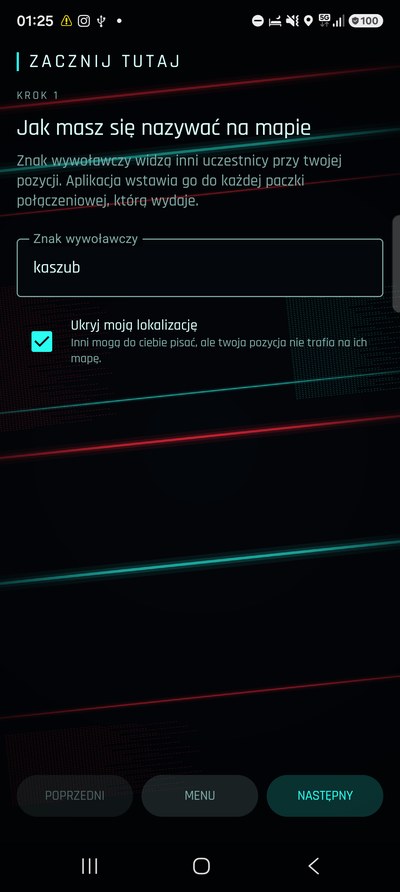
The wizard walks you from a callsign to a working ATAK. It asks how your group is going to connect and picks the next steps from your answer. Anyone who does not want the wizard goes straight to the menu.
Connecting with others
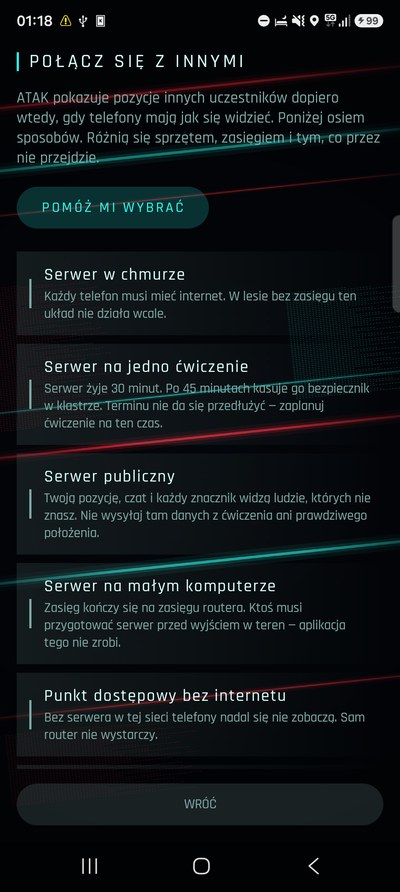
Eight ways a group can see each other on the map, each with its limit spelled out: a cloud server needs internet in every phone, a public server shows your position to strangers, an access point without a server connects nobody. The app helps you choose instead of selling one arrangement.
Installing ATAK
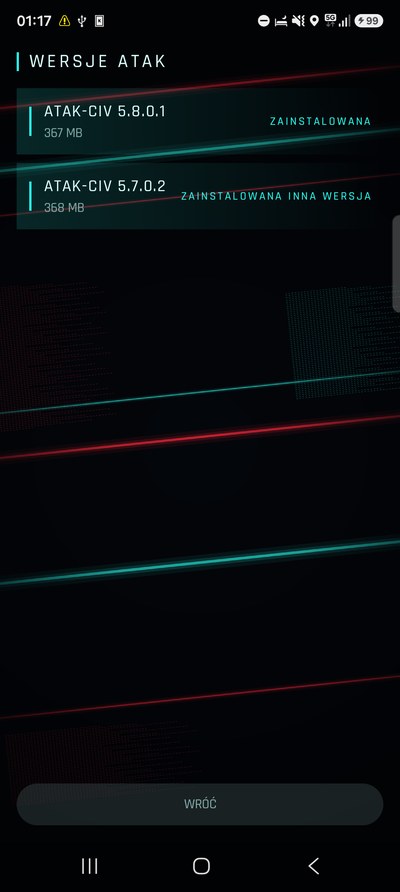
A list of ATAK-CIV releases. The app downloads the release you pick, checks that the file is the right one and that nobody touched it on the way, and only then starts the installation.
Plugins
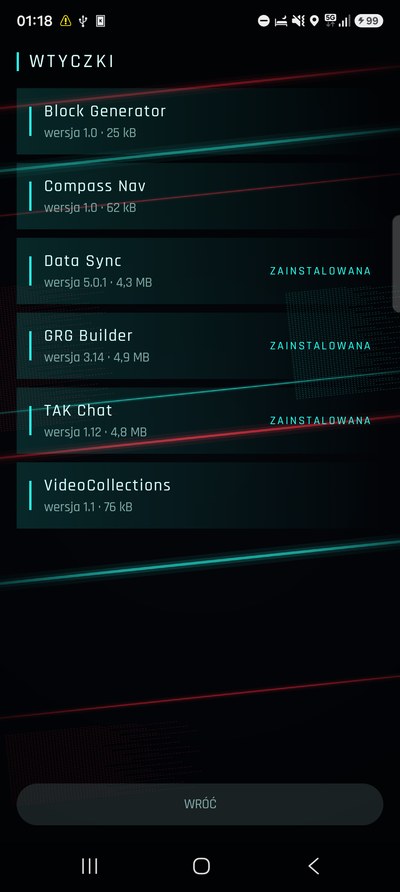
Plugins matched to your ATAK release. A plugin fits one release, not a range of versions, so the list never offers one that would fail to start.
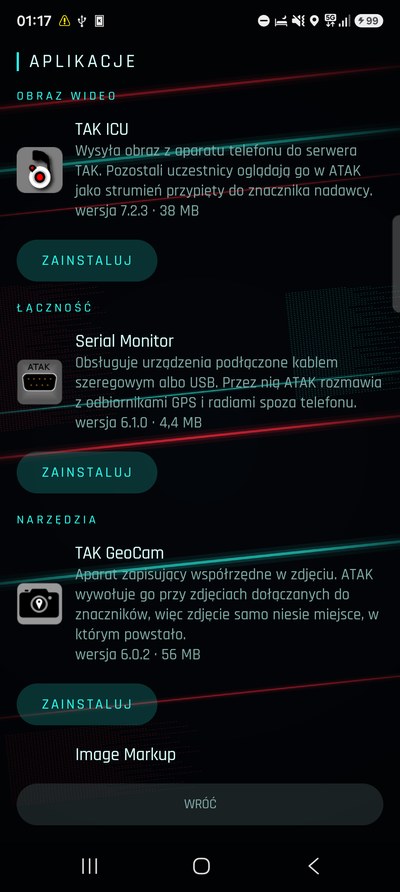
Companion apps
TAK ICU sends the camera feed to the server. Serial Monitor opens ATAK a path to GPS receivers and radios on a cable. TAK GeoCam writes the coordinates into the photo. Every entry carries a version, a size and one sentence on what it is for.
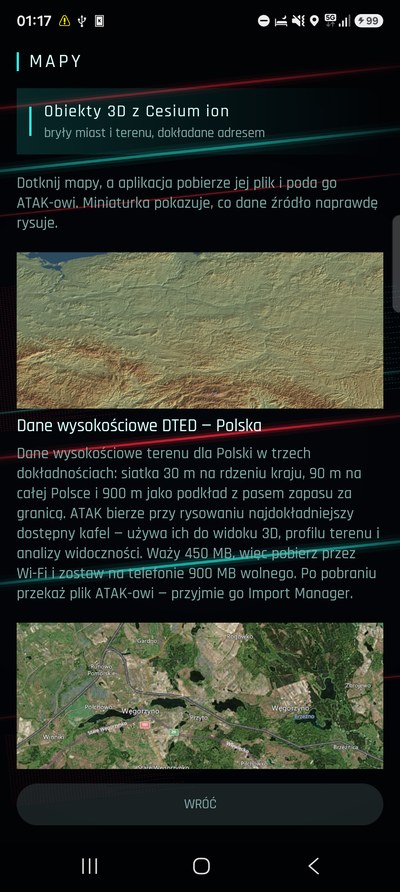
Maps and terrain data
Map layers, DTED elevation data and 3D city models from Cesium ion. Tapping an entry downloads the file and hands it to ATAK. A thumbnail on every entry shows what that source actually draws.
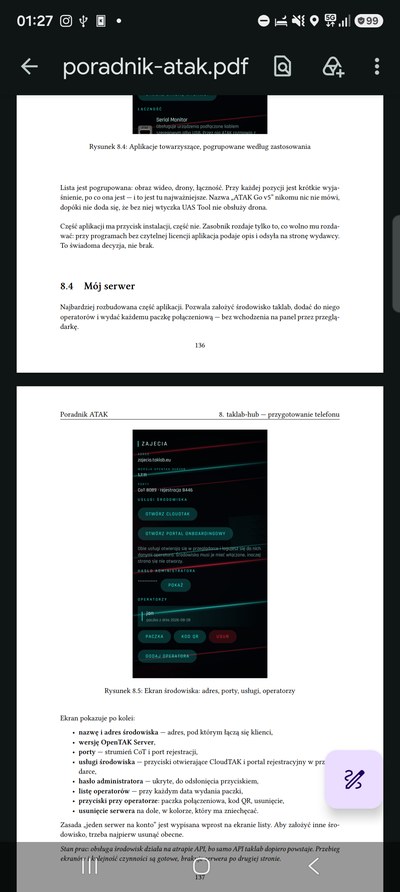
The ATAK guide
An ATAK handbook to download and read on the phone. Meant for before you go out into the field, not during.
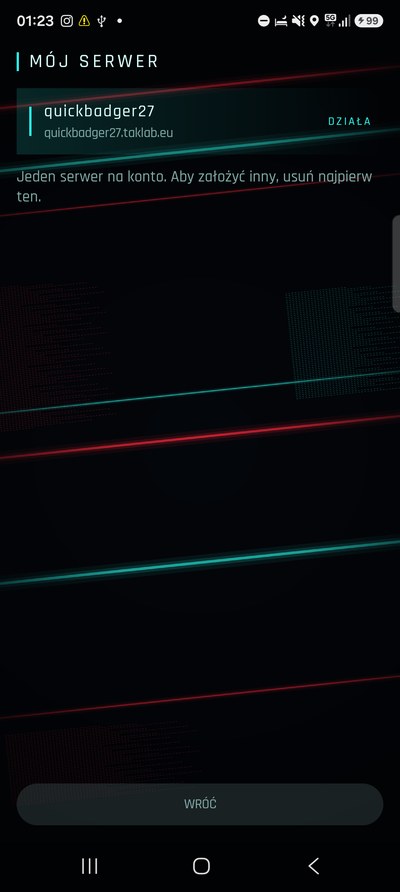
My server
Ordering an environment from the phone, plus its address and state. One account runs one server — to create another, you delete the previous one.
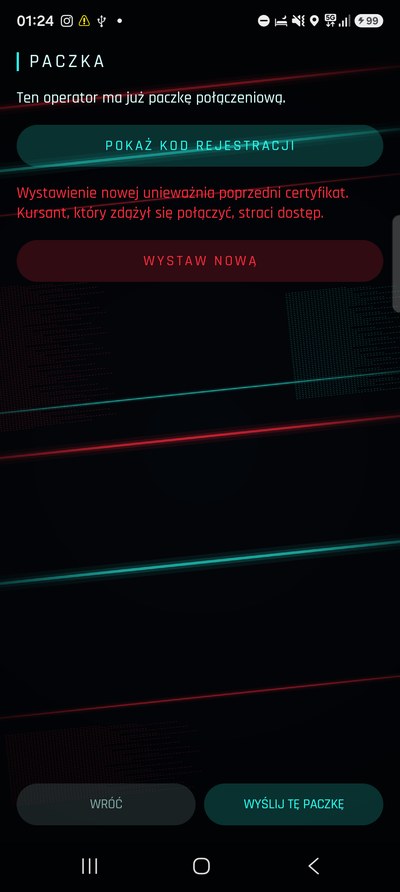
Package and enrolment code
The operator's connection package and the enrolment code on screen. A participant scans the code or loads the package, and ATAK gets the server address and the certificate on its own. The app warns you before issuing a new package: it invalidates the previous certificate and throws out a student who had already connected.
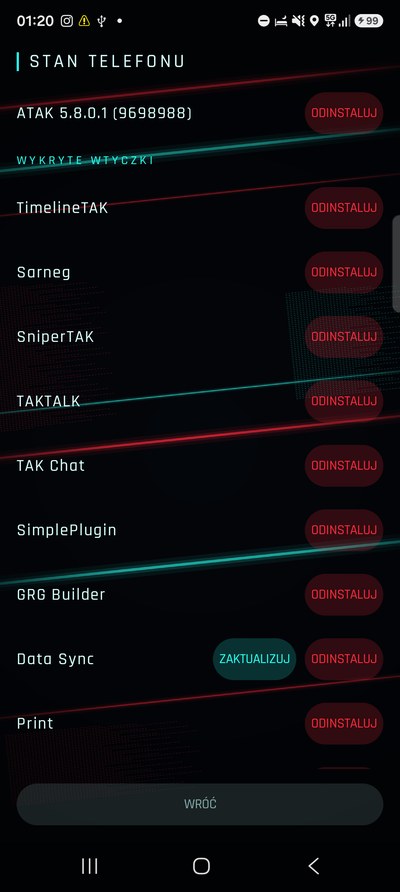
Phone state
One list: ATAK and every plugin with its release number. You see what is on the phone, what is missing and what is worth moving to a newer version.
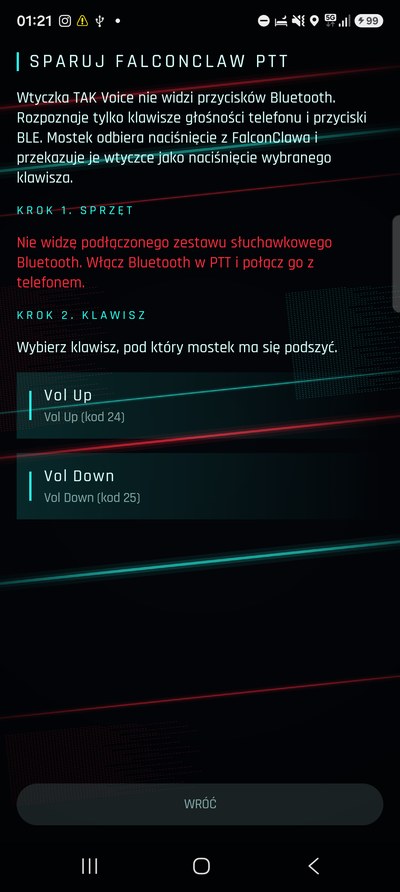
PTT bridge
It passes a press of the PTT button on a Bluetooth headset through to the ATAK voice plugin. The plugin does not recognise those buttons by itself, so without the bridge the button does nothing.
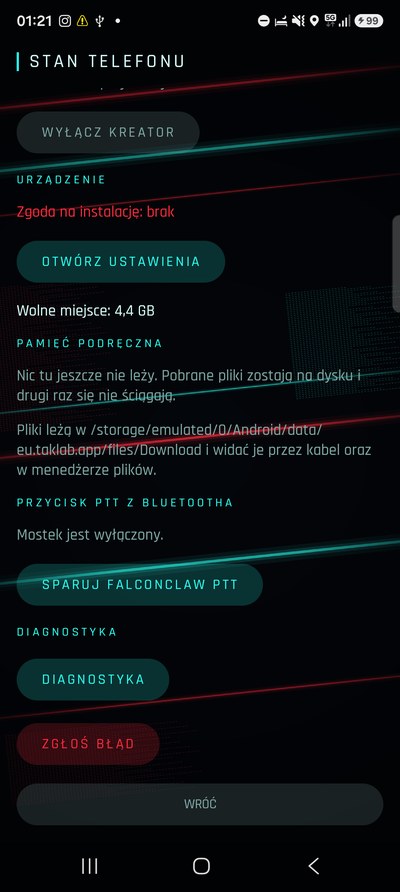
Diagnostics and reports
Checks on permissions, on the connection to our file server and on the state of the installation. When something fails to start, the fault report goes out together with that record, so you do not have to describe it from memory.
How you know the file is the right one
The app checks every file it downloads before handing it to the installer. It compares the file against our signature, which it knows in advance and which nobody outside can forge. A file swapped on the way, or damaged while downloading, fails that check and is not installed.
What is still missing
We would rather write this down than leave you with a surprise after you install it.
- The VPN screen is a placeholder and is hidden from the menu by default.
- Two wizard branches — shared wifi and a shared VPN — end in a placeholder today.
- The app does not replace ATAK. It installs it, sets it up and gets out of the way.